Inventory: resources
Inventory > Resources lists every resource the sensor has discovered in this facility. Six KPI cards summarize it first: Last check-in, Seen / Unseen at the last check-in, Inventory capacity (discovered resources against your license limit), Changes since the last check-in, and how many resources are in RUN mode versus STOP mode. RUN and STOP reflect the operational mode the sensor observed on a device, for example whether a PLC is executing or halted, not whether the resource itself is reachable.
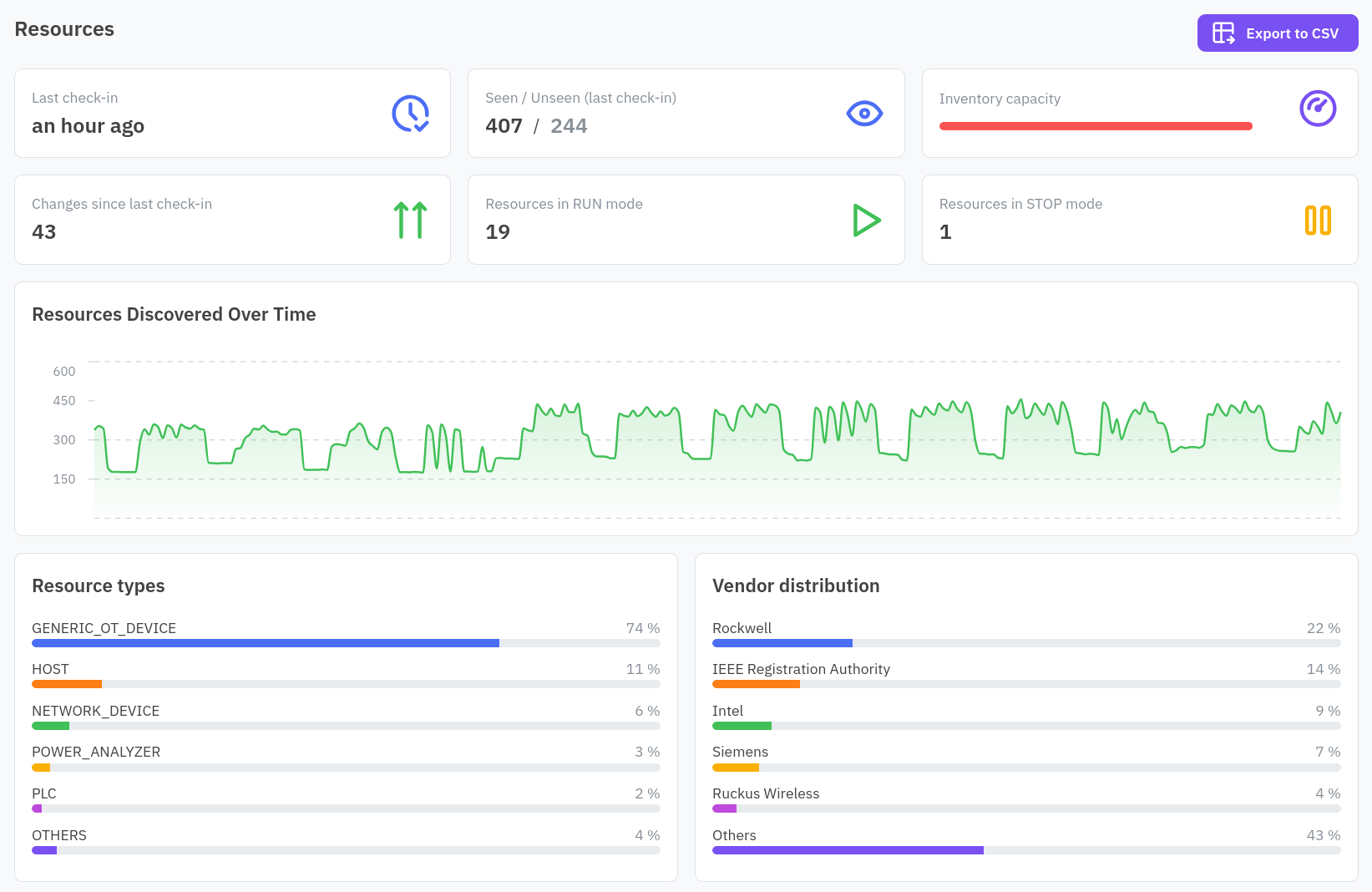
Below the KPIs, a Resources Discovered chart and a pair of breakdown charts (by type, by vendor) give a facility-wide shape of the inventory before you drop into the table.
Filter and sort the table
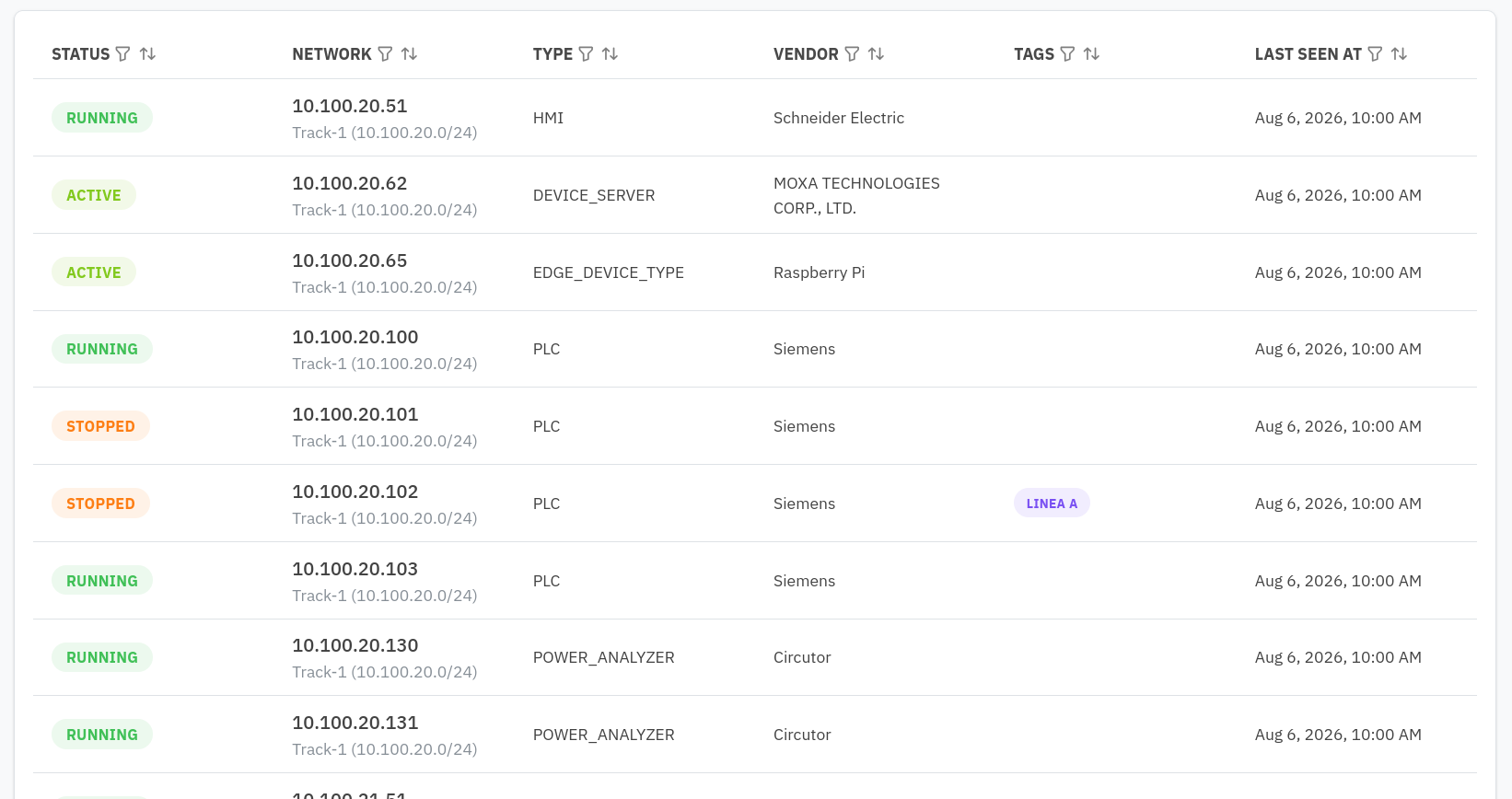
The Resources table lists Status, Network (IP and subnet, with the network alias if one is set), Type, Vendor, Tags, and Last Seen At. Click a column header to filter: Status, Network, Type, Vendor, and Tags support multi-select filtering, and Last Seen At supports a date range. Click a row to open that resource’s detail view.
Export to CSV
Click Export to CSV, top right, to download the current facility’s resources as a CSV file.
Force a refresh
The resources you see reflect the last snapshot. Open the account menu (top right) and click Refresh Resources to trigger a new one immediately instead of waiting for the roughly eight hour cadence. See Snapshots and change detection for what a refresh actually does.
Click into a resource to see its full detail: metadata, network posture, findings, vulnerabilities, alerts, and behavior profile. See Resource detail.